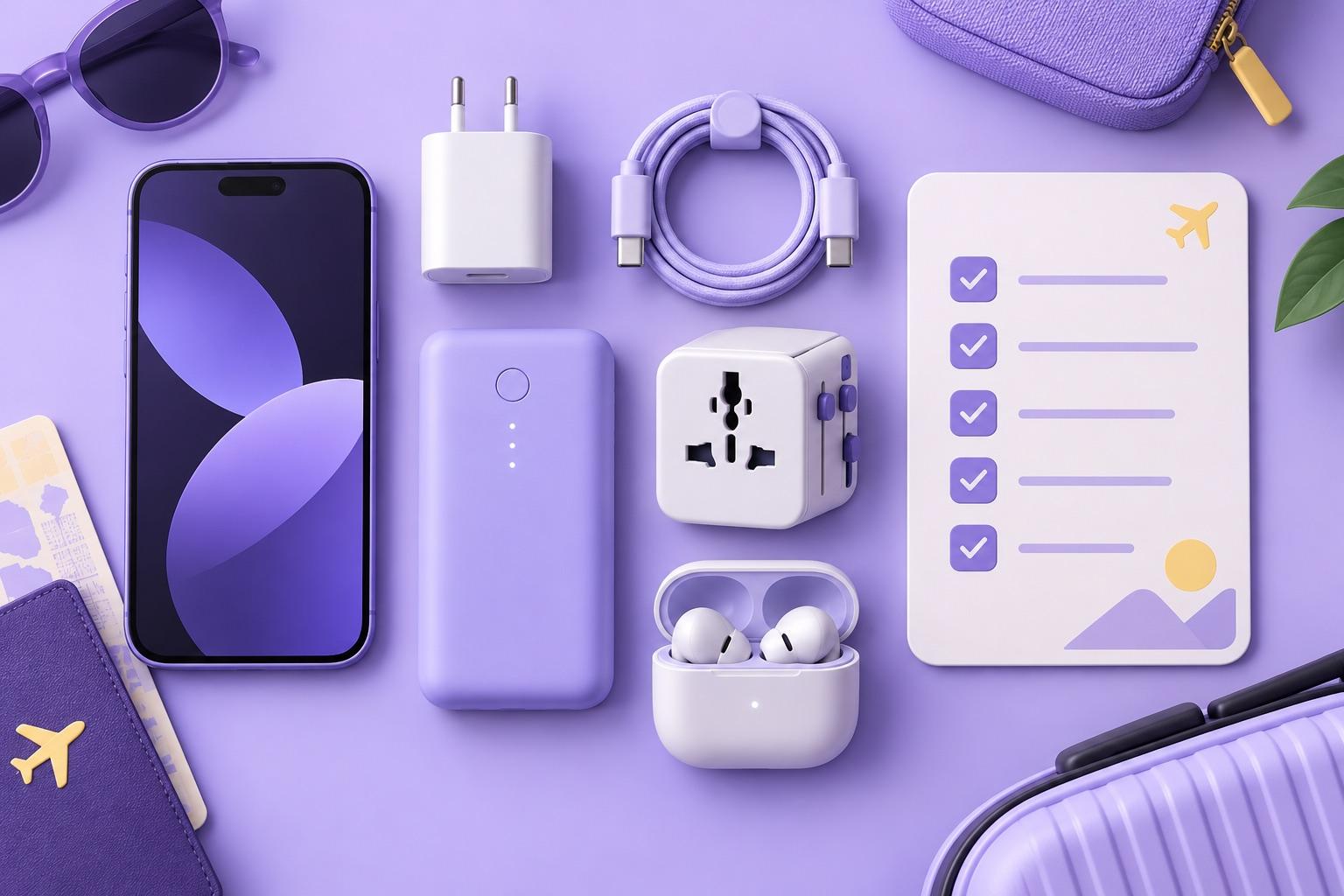
Travel Tech Checklist: The Night Before You Fly
Use this travel tech checklist the night before you fly: check your eSIM, save offline maps, back up your phone and pack chargers correctly.
Before packing your charger, try opening your hotel details with Wi-Fi and mobile data switched off. Use this travel tech checklist the night before you fly to prepare your phone, data and essential documents. We suggest checking everything in the order below, then repeating the connection checks after arrival.
Keep your itinerary beside you while you work through the list. Include every overnight stop and any airport where you plan to use mobile data.
Is your phone ready for a travel eSIM?
Check that your exact phone model supports eSIM and is carrier-unlocked before comparing plans. On iPhone, Apple requires an unlocked device when using a different provider abroad.
For an iPhone, open Settings, then General, then About. Apple says “No SIM Restrictions” beside Network Provider Lock confirms it is unlocked. For Android, check your manufacturer's instructions for your exact model and ask your provider about any network lock.
Our eSIM compatibility guide gives you a starting point for those checks. Resolve any uncertainty before choosing a plan for tomorrow's flight.
Simnetic eSIM data plans do not include a phone number. Plan separately for any calls or texts you need through your existing number.
Which data plan should you compare before flying?
Compare prepaid plans against your route, trip length and expected use. Before choosing a global option, check each destination's inclusion in the individual plan details.
These representative Simnetic global prices were checked on 15 October 2026 and can change. The global eSIM page shows current plan details and prices in the catalogue.
Data | Validity | Price (USD) |
|---|---|---|
1 GB | 7 days | $6.49 |
2 GB | 15 days | $10.99 |
3 GB | 30 days | $13.49 |
5 GB | 30 days | $21.49 |
20 GB | 30 days | $58.49 |
Validity is how long the plan lasts once active. Compare that period with your return date as well as your departure date. Write down whether you expect to use maps, messaging, video or work applications each day.
Simnetic tip: Some global plans allow top-ups; check whether your chosen plan supports them before you travel.

When should you install and set up your eSIM?
Install over home Wi-Fi once you have checked your chosen plan's activation instructions. Follow those instructions for when to enable the plan and start using data.
Apple says iPhone eSIM setup normally needs Wi-Fi or a hotspot. Keep the Simnetic installation guide open while completing these steps:
- Check the destination, data allowance and validity on your chosen plan.
- Read its installation and activation instructions before scanning the supplied QR code.
- Complete installation on the phone you intend to take abroad.
- Save the instructions and your order reference somewhere you can find them easily.
- Note which mobile-data settings you need to check after arrival.
For iPhone, Apple explains how to select which line supplies mobile data. If you intend to keep your home line enabled, check its roaming charges with your provider before leaving.
What should you save for offline access?
Save hotel details, booking references and your arrival instructions directly on your phone. Download a Google Maps area for offline use where available, then test it without internet.
Include your accommodation address, check-in instructions and the contact details for your airport transfer. Keep a paper copy of your first night's address and an emergency contact number as well.
Google Maps does not provide walking, cycling or public-transport directions offline. Its offline driving guidance also requires the whole route to fit within the downloaded area. Save written arrival directions separately if you plan to walk or take public transport.
Open each saved document now and check that its dates match your itinerary. For further preparation, use our guide to saving mobile data abroad.
How should you prepare for a lost phone or login problem?
Complete a phone backup and prepare an account-recovery method you can access without that phone. Check your screen lock and device-finding settings before leaving home.
On iPhone, use iCloud Backup, then Back Up Now, and check the displayed backup time afterwards. On Android, Google provides a Back up now option and a backup-details review. Review what is included before considering the backup complete.
Apple says Find My must be set up before the device is lost. Check that setting tonight if you use an iPhone.
For Google accounts with two-step verification, backup codes can provide the second sign-in step if your phone is unavailable. Prepare them where available, store them securely apart from your phone, and never share them.
Bookmark our lost-phone action guide on another device you can access during the trip.
What charging equipment should you pack?
Pack a tested charging cable, a suitable charger and the correct destination plug adaptor. Put power banks in hand baggage, as UK CAA guidance requires.
Check that your charger suits the destination's electricity supply before relying on it. Electrical Safety First explains that travel adaptors do not convert voltage or frequency.
Read your airline's battery rules, including capacity limits and onboard-use restrictions, before packing a power bank. The CAA limits passengers to two power banks and prohibits recharging them on board. It also advises against using them to charge devices during the flight.
Test your cable with the phone tonight, then charge your devices before departure. Keep your charging kit together and check it again before leaving home.
What should you test before departure and after landing?
Test your saved information offline before departure, then check mobile data after landing. Confirm your chosen data line and follow the travel plan's roaming instructions before opening apps.
- Tonight, switch off Wi-Fi and mobile data and open your hotel details.
- Check your downloaded map and written arrival instructions, then restore your connection.
- After landing, follow your plan's activation steps and select its data line.
- Turn Wi-Fi off briefly and try loading a webpage through mobile data.
On iPhone, turn off data roaming on your home line if you do not want it using roaming data. Check the travel line separately: Apple notes that international data plans may require roaming to remain enabled.
Ready to organise your travel data? Compare Simnetic plans for your destinations and check the details against your itinerary.
About the author: Written by the Simnetic team at Domaxit LTD, a London-based provider of prepaid travel eSIM data plans for 217 countries and virtual phone numbers. We check every price and plan detail in our articles against the live Simnetic catalogue before publishing.