How to Install eSIM on Android: Samsung and Pixel
Learn how to install eSIM on Android with Samsung and Pixel steps, QR code options, mobile data settings and checks before you travel.
Start with your phone's own menu, then check which SIM will carry your travel data. This guide explains how to install eSIM on Android, with separate Samsung Galaxy and Google Pixel steps. Keep your installation details beside you, follow the matching instructions, and finish with a connection check after arrival.
What do you need before installing an Android eSIM?
Check that your phone supports eSIM and is carrier-unlocked before installing a travel plan. Have your plan's QR code ready and connect to Wi-Fi before starting.
Samsung warns that eSIM support can vary by country of origin, even for a listed model. Google lists Pixel 4 and later as supporting eSIM, with restrictions on certain older models. Check your exact device using our phone compatibility guide.
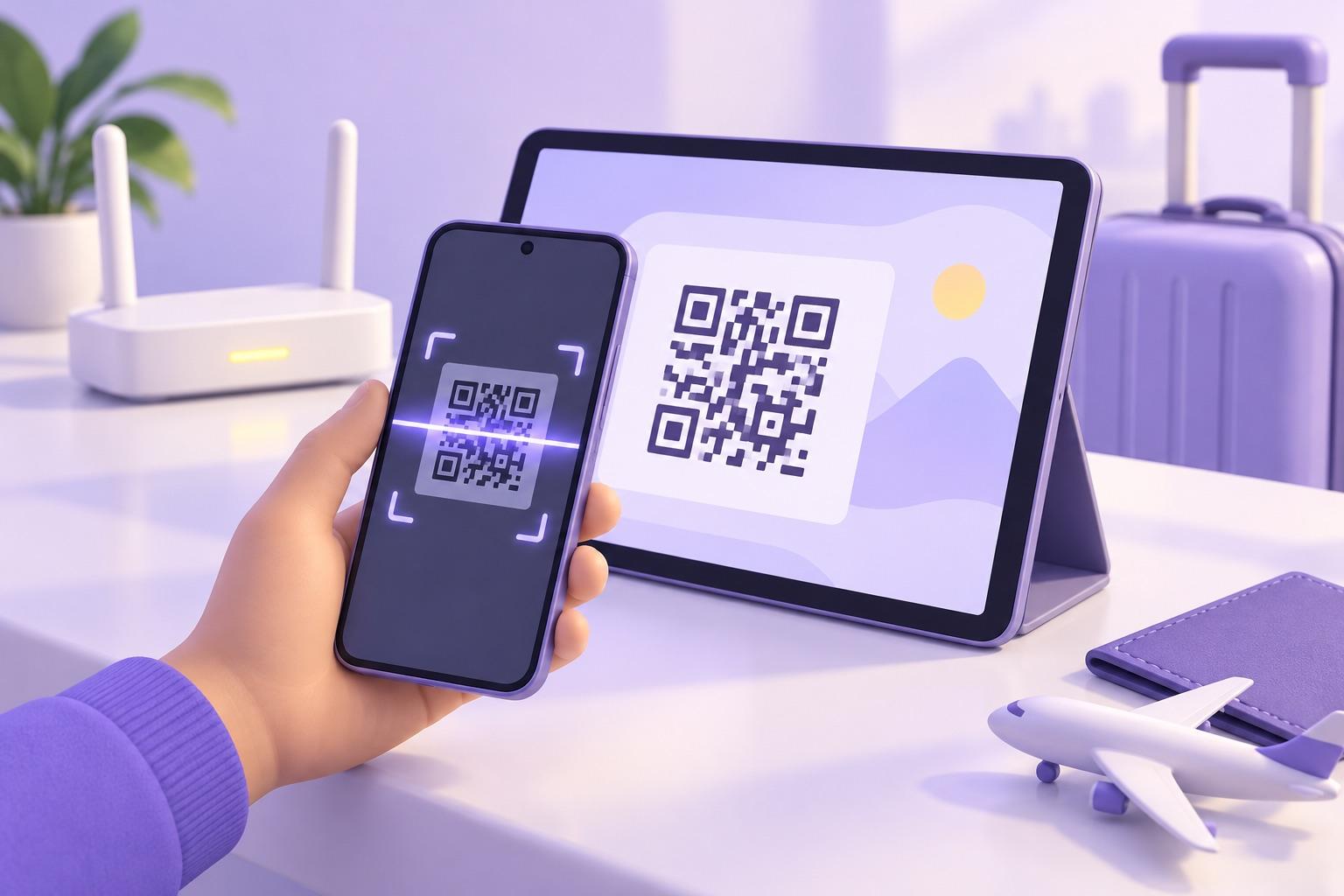
Open the QR code on another screen or print it before scanning. Google confirms that Pixel eSIM setup needs an internet connection, so check your connection first.
How do you install an eSIM on a Samsung Galaxy?
On a compatible Galaxy, add the eSIM through Settings, Connections and SIM manager. Choose the QR option, scan your plan's code, and complete the download prompts.
Follow this sequence, based on Samsung's QR installation instructions:
- Open Settings and choose Connections.
- Open SIM manager, then select Add eSIM.
- Choose Scan QR code and scan the code supplied for your plan.
- Follow the prompts to finish adding the eSIM.
Samsung also documents the labels SIM card manager, Add mobile plan and Add using QR code. Use the wording shown on your device. Samsung notes that menus can vary by model and software version.
How do you install an eSIM on a Google Pixel?
On a compatible Pixel, open Network & internet, then SIMs, Add SIM and Set up an eSIM. Follow the prompts and scan the QR code supplied for your plan.
Use Google's current Settings route:
- Open Settings, then Network & internet.
- Choose SIMs, followed by Add SIM.
- Select Set up an eSIM and follow the instructions displayed.
- At the QR screen, scan your provider's code and finish the setup prompts.
Google notes that the process can differ slightly by provider. If your screens differ, read the instructions before continuing. Keep the plan details open while completing setup, then review the data settings below.
What if you cannot scan the QR code?
Use the manual option if your provider has supplied an activation code. Samsung supports manual code entry, while Google describes a troubleshooting link for typing the code.
On Samsung, follow Add eSIM, Scan QR code, then Enter activation code. Copy the supplied details carefully and follow the prompts. On Pixel, use the manual entry option through the QR screen's troubleshooting link.
If you cannot find the code, ask support for the correct installation details. Our eSIM QR code guide explains what to check before trying again.
Which SIM should use mobile data abroad?
Select your travel eSIM as the mobile data SIM through Samsung's SIM settings or Pixel's SIM preferences. Review roaming and automatic data switching before testing the connection.
- Samsung: Under Settings > Connections > SIM manager, open Mobile data and choose the travel eSIM.
- Pixel: Under Settings > Network & internet > SIMs, choose the travel eSIM for Mobile data.
Turn off Samsung's automatic data switching or Pixel's Automatic data switching, where available. On Pixel, also leave Data during calls off if shown, to avoid using the other SIM's data during calls.
Follow your travel plan's roaming instructions. Samsung places Data roaming under Connections > Mobile networks; Pixel provides Roaming in its mobile network settings. Check which line you are configuring before changing it. Leave home-line data roaming off where separate controls are available.
Simnetic data plans do not include a phone number. Do not select the travel data plan expecting a new number for calls.
When should you install and activate your travel eSIM?
Plan to install on Wi-Fi before departure, after checking your plan's activation policy. Follow that policy when choosing the installation date and switching the plan on.
Read the activation instructions before scanning the code, and check when the validity period begins. Do not assume every plan follows the same activation timetable. Keep a copy of your plan details and installation instructions available for arrival.
Simnetic tip: Each plan shows its data allowance, validity and price before payment; check all three before choosing.
Which Simnetic plans can you compare before installation?
You can compare fixed data plans by allowance, validity and price before choosing your travel eSIM. These examples from the Simnetic global eSIM page were checked on 15 October 2026 and can change.
Data | Validity | Price (USD) |
|---|---|---|
1 GB | 7 days | $6.49 |
2 GB | 15 days | $10.99 |
3 GB | 30 days | $13.49 |
5 GB | 30 days | $21.49 |
20 GB | 30 days | $58.49 |
Check the plan's destination list against your itinerary before choosing it. Compare the validity period with your travel dates, then read the activation instructions before installation.
What should you check if the eSIM does not connect?
First check that the travel eSIM is selected and mobile data is enabled. Then check your plan's activation instructions, data balance and roaming settings before contacting support.
On Pixel, Google recommends checking that Mobile data and Use SIM are both on. On Samsung, check that Flight mode is off and Mobile data is on.
After arrival, turn Wi-Fi off briefly and try loading a webpage to test mobile data. If it fails, reconnect to Wi-Fi and follow our eSIM not working abroad checklist. Save the exact error message for support and ask for guidance before deleting the eSIM.
Preparing your phone for departure? Keep the Simnetic installation guide open beside your plan instructions.
About the author: Written by the Simnetic team at Domaxit LTD, a London-based provider of prepaid travel eSIM data plans for 217 countries and virtual phone numbers. We check every price and plan detail in our articles against the live Simnetic catalogue before publishing.